A tablet can become much more than just a screen for viewing course materials. Properly configured, it serves to take notes, annotate PDFs, review, prepare presentations, work in groups, and centralize documents. Its real strength lies in its mobility: it can be taken out of the bag in seconds and easily accompanies the student between the lecture hall, library, transportation, and home. However, it is necessary to adopt an appropriate organization and not try to exactly replicate the usage of a laptop.
What a tablet changes in daily life
The first advantage is obvious: weight and bulk are reduced. A medium-sized tablet accompanied by a stylus can replace several notebooks, binders, and some of the books carried every day. The student keeps their documents in a single device, with the ability to find a course through a search rather than leafing through dozens of sheets.
This method becomes particularly practical when teachers distribute their materials in PDF or via an educational platform. The file can be downloaded before the class, then annotated directly during the session. Instead of copying a definition already present in the document, the student only adds a clarification given orally, a formula, a remark, or a question.
- Note-taking: virtual keyboard, physical keyboard, or stylus writing.
- PDF: highlighting, comments, and handwritten annotations.
- Review: flashcards, memory cards, quizzes, and exercises.
- Group work: quick document sharing and video conferencing.
- Organization: agenda, schedule, courses, and assignments gathered in one place.
- Mobility: easy use in the library, lecture hall, or during transportation.
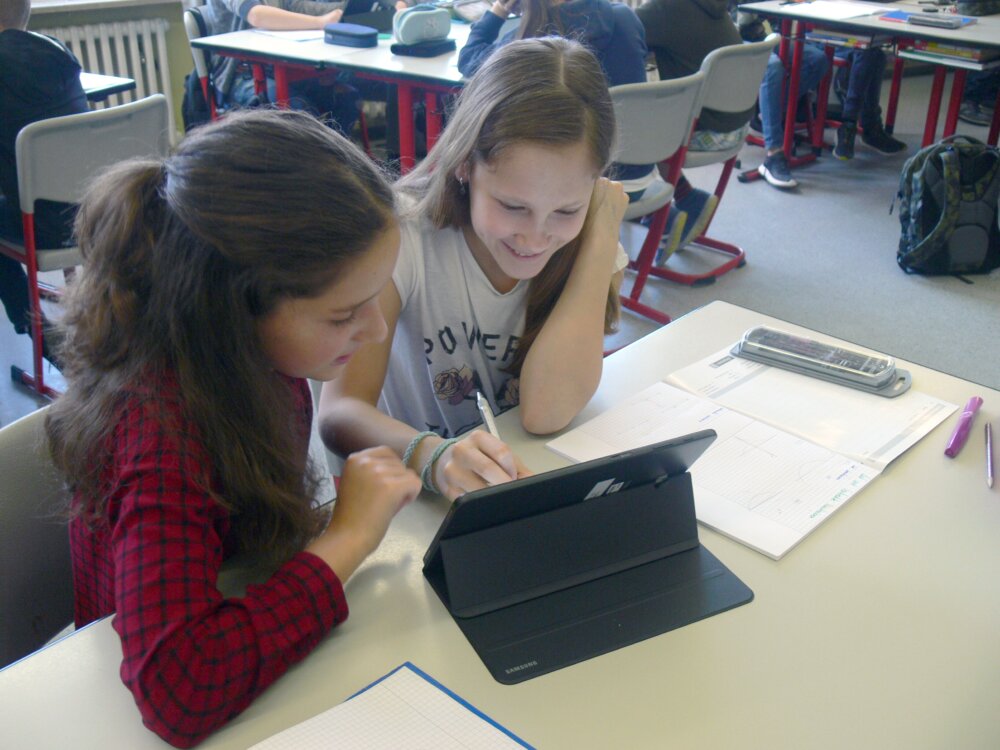
Creating a simple note system
The classic mistake is to install about ten applications in the first few days. The result quickly resembles a desk covered with papers: some notes are in one app, PDFs in another, and assignments elsewhere. An effective organization rather relies on three functions: capture, classify, and retrieve.
An identical structure for each subject
A simple solution is to create a main folder per year or semester, then a subfolder per subject. Each course then follows the same logic: original material, personal notes, exercises, and possibly a revision sheet. This regularity may seem almost too basic, but it prevents wasting time when exams approach.
The date can also be part of the document names. A file named 2026-10-08_Constitutional-Law_Institutions.pdf is naturally sorted and remains understandable several months later. Students handling several dozen documents per semester greatly benefit from adopting a naming convention from the start of the school year.
| Usage | Recommended organization | Benefit |
|---|---|---|
| Classes | One folder per subject | Documents easy to find |
| Original + annotated version | Preservation of the source document | |
| Revisions | A dedicated folder per exam | Quick access to useful notes |
| Assignments | Draft, sources, and final version | Fewer scattered files |
Taking better notes in class
The tablet does not automatically make notes more effective. Copying every sentence spoken by the teacher often produces a very long document from which the student will retain little. Digital technology becomes truly useful when it allows separating essential information from secondary details.
When a support document is available before class, it is better to download it and then annotate it. A definition already written on the slide does not need to be copied. The available space can be used to note an example given orally, an additional explanation, or a link with a previous chapter.
The choice of equipment obviously affects this working comfort. Screen size, battery life, compatibility with the stylus, keyboard, and available applications can radically change the experience. To explore these criteria before a purchase, this guide dedicated to choosing a student tablet provides additional benchmarks: https://www.letudiant.fr/lifestyle/quelle-tablette-tactile-choisir-pour-reussir-sa-rentree-2026.html?preview=1787045831914.
The stylus changes certain courses
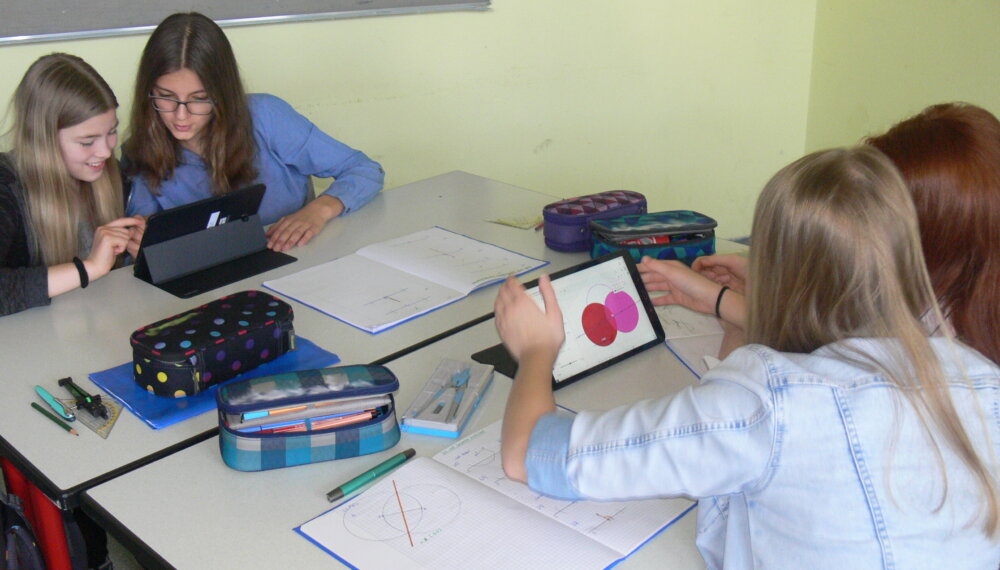
For mathematics, physics, chemistry, architecture, or any subjects involving diagrams, digital handwriting retains an advantage. A complex equation is often faster to draw than to type with a keyboard. The same applies to a graph, a mind map, or an annotation placed directly on an illustration.
The stylus is less decisive when classes rely almost exclusively on long texts. In this case, a physical keyboard generally provides more comfort. The two accessories therefore meet different needs rather than a hierarchy of quality.
Keyboard, storage, and accessories: choose wisely
A bare tablet sometimes seems affordable, then the budget increases when adding the keyboard, stylus, case, and possibly more storage space. The real cost must therefore be calculated as that of a complete work setup.
The keyboard becomes almost indispensable as soon as the student regularly writes several pages. Very compact keyboards remain pleasant for replying to a few messages or completing a note, but can be tiring during an essay or a twenty-page report.
Storage also deserves some anticipation. PDFs and office documents take up relatively little space, but videos, applications, course photos, and some creative projects can quickly fill limited internal memory. The cloud helps keep archives, but some files must remain accessible offline, especially during transport or in rooms where Wi-Fi works poorly.
| Profile | Priority | Useful accessory |
|---|---|---|
| Handwritten notes | Screen and touch precision | Stylus |
| Writing | Typing comfort | Physical keyboard |
| Mobility | Weight and battery life | Light case |
| Creation | Power and storage | Stylus + generous storage |
| Presentation | Connectivity | USB-C adapter |
Turning notes into a revision tool
Accumulating hundreds of digital pages is not enough. The tablet becomes much more interesting when class notes are gradually transformed into memorization material. A few minutes after a session can be enough to reread the document, complete incomplete sections, and identify concepts that deserve to be revisited.
A good method is to produce a short summary sheet after each chapter. It should not reproduce the entire lesson. Instead, it gathers the essential definitions, mechanisms to understand, some examples, and common mistakes.
Flashcards work particularly well for elements that need to be quickly recalled: vocabulary, dates, formulas, definitions, or concepts. For subjects relying more on reasoning, they can be supplemented with open questions. Instead of rereading “Why does this rule exist?”, the student hides the answer and really tries to reconstruct it.
A tablet is most effective when it reduces the time spent searching for and copying information. If it only serves to accumulate more files, the benefit remains limited.
Adapting use to your training
Law, literature, and humanities
These fields generate a lot of reading and writing. The tablet excels at consulting, highlighting, and annotating documents, but a keyboard quickly becomes necessary when essays, reports, or theses get longer. Screen sharing between the studied text and personal notes can also speed up documentary work.
Medicine and health sciences
Large materials, anatomical diagrams, and numerous sheets favor the use of a tablet. The stylus allows completing an illustration or precisely annotating a plate. Filing must be particularly rigorous: when several hundred documents accumulate, poor organization quickly becomes penalizing.
Mathematics and sciences
Writing equations, graphs, and diagrams make the stylus particularly interesting. However, a limitation appears as soon as a curriculum requires development environments, simulation, or certain scientific software. In this context, the tablet often complements the computer rather than replaces it.
Arts, design, and creation
Drawing, retouching, storyboarding, or visual note-taking directly exploit the touchscreen. The quality of the stylus, the display surface, and the available power then take on more importance than for simple lesson consultation.
Computing and Engineering
A tablet remains practical for reading documentation, annotating diagrams, and following a course, but the computer generally retains a central role for programming, virtualizing, compiling, and using technical software. The best setup can therefore be a combination of a lightweight tablet + a desktop or laptop computer depending on the context.
Mistakes That Waste Time
The main trap is not hardware-related. It comes from distractions. The same device that displays the course also gives access to messages, videos, social networks, and an unlimited amount of content. A few simple settings can transform the tablet into a true study environment.
- Turn off notifications during work sessions.
- Separate study and leisure with different home screens.
- Regularly back up important documents.
- Avoid redundant applications that scatter notes.
- Keep a local copy of necessary files offline.
- Test the software required by the institution before replacing a PC.
Another mistake is to want to digitize absolutely everything. A small paper notebook can remain faster for certain tasks. The goal is not to eliminate every sheet, but to choose the tool that requires the least effort to accomplish a given task.
FAQ about Tablets for Students
Can a tablet replace a computer?
For note-taking, reading, PDFs, research, and simple office work, yes in many cases. Professional or technical software, however, may require a traditional computer.
What screen size is comfortable?
A diagonal around 10 to 11 inches generally offers a good balance between readability and mobility. A larger screen improves multitasking but makes the whole setup heavier.
Is a stylus essential?
No. It becomes particularly useful for formulas, diagrams, annotations, and drawing. A student who mainly writes long texts will benefit more from a keyboard.
Should I buy a keyboard?
As soon as written work becomes frequent, a physical keyboard significantly improves comfort and typing speed. For a few short annotations, the virtual keyboard may suffice.
How much storage should I plan for?
Needs depend heavily on the course of study. Office documents use little space, while videos, images, software, and creative projects may require much more capacity.
Is the cloud enough to store my courses?
It facilitates synchronization and backup, but it is better to keep the necessary documents locally during classes or while traveling. Internet access is never guaranteed everywhere.
How to avoid distractions?
The most effective way is to disable non-essential notifications and use a focus mode. A homepage reserved for study apps also reduces unnecessary distractions.
Can you work only with a stylus?
It is realistic for certain very graphic courses or for short note-taking. To write several thousand words, a real keyboard generally remains more comfortable.
Building your environment rather than accumulating devices
The best setup is not necessarily the one with the most accessories or the highest performance. A student benefits more from having a coherent system: a single place for their courses, a simple filing method, reliable backup, and a few perfectly mastered applications.
The tablet then naturally finds its place. It accompanies classes, allows working in small spaces, and makes documentation immediately accessible. Used alone in some courses or paired with a computer in others, it becomes especially interesting when it truly simplifies daily work. The right approach is therefore to start from the tasks performed each week, then choose the tools and accessories capable of making them faster and more comfortable.