| Key points | Details to remember |
|---|---|
| 🛠️ Definition | Identify the 0x0000001E blue screen and its associated message |
| ⚠️ Symptoms | Observe the systematic BSOD at startup without full Windows loading |
| 💡 Common causes | Analyze drivers, RAM memory, system file, or hardware conflict |
| 🔍 Diagnosis | Test the memory, check the disks, and run SFC/CHKDSK |
| 🛡️ Solutions | Update drivers, replace RAM sticks, repair Windows |
| 📈 Prevention | Plan regular backups and keep the system up to date |
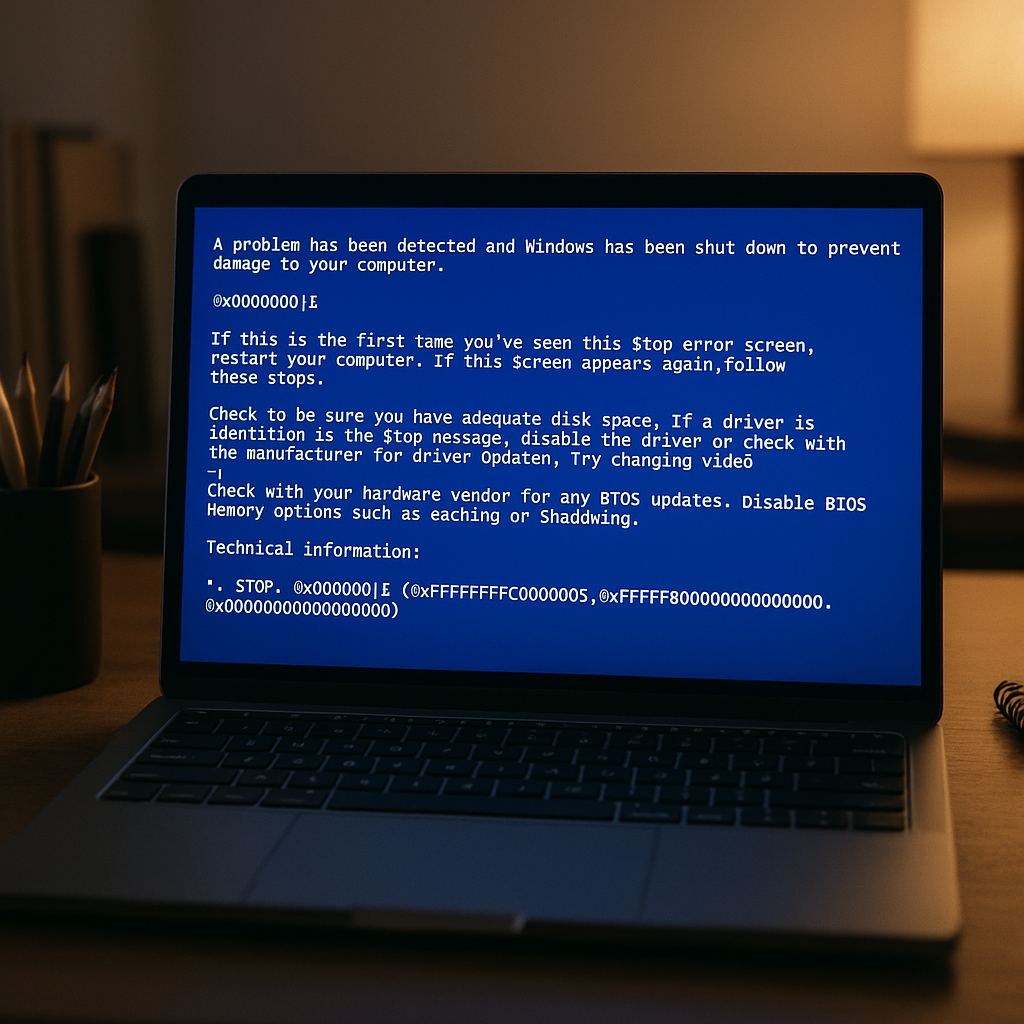
Nothing is more frustrating than a PC showing its infamous blue screen even before reaching the desktop. The error 0x0000001E – often accompanied by the title IRQL_NOT_LESS_OR_EQUAL – indicates a conflict between the kernel and a hardware or software component. In this article, we dig into the subject to understand where this BSOD comes from, how to diagnose it in a few minutes, and what measures to take to restore a stable system.
Understanding error 0x0000001E
In reality, IRQL_NOT_LESS_OR_EQUAL means that Windows tried to access a forbidden memory area or one with a higher priority than allowed. One might think it is only a software malfunction, but often hardware plays a crucial role – whether it is a defective RAM stick, an unstable driver, or even a poorly connected peripheral.
At startup, each driver is loaded in a precise order. If one of them reads or writes outside its area, the kernel protects itself and immediately triggers the crash. There is no half-measure: the computer stops everything, displays the error code, then restarts or remains stuck. The early appearance of the BSOD prevents normal Windows loading and sometimes limits access to built-in repair tools.
Interpreting the associated message
In addition to the hexadecimal code, Windows may mention the culprit driver (e.g., ntoskrnl.exe, tcpip.sys) or display technical parameters. Ideally, note the file name if it appears: it will guide the rest of the diagnosis. You can also retrieve the memory dump if system access allows it, but this is often tedious for a non-specialized user.
Main causes
This BSOD is not an isolated accident: several scenarios lead to it. Rather than focusing on a single lead, each possible origin is methodically evaluated.
- Incompatible drivers: failed automatic update, old driver not uninstalled.
- Defective RAM sticks: hardware defect or frequency overload due to overclocking.
- Corrupted system files: sudden cut during a critical write.
- Incorrect BIOS/UEFI configuration: overclocking settings or poorly adjusted SATA modes.
- USB peripherals: conflict between controllers or unstable power supplies.
When Hardware Lets You Down
Modern memory modules poorly tolerate timing imbalances. If your PC is overclocked and the RAM is pushed beyond its capabilities, a BSOD 0x0000001E can appear without warning. I have already seen gaming setups shut down due to a simple 100 MHz increase – the tolerance margin is narrower than one might think.
Step-by-step Diagnosis
Before diving headfirst into reinstallation, we review some free tools to pinpoint the source of the problem.
| Diagnostic Tool | Description |
|---|---|
| MemTest86 | Thoroughly checks the RAM to detect unstable bits |
| SFC /scannow Commands | Automatically repairs corrupted system files |
| CHKDSK /f | Scans and fixes bad sectors on the disk |
| Driver Verifier | Enforces strict driver loading to find the incompatible one |
Accessing Safe Mode
If Windows refuses to start normally, switch to safe mode by pressing F8 or via the recovery menu. The idea is to start with a minimum of drivers to isolate the culprit. From there, open a command prompt as administrator and run:
sfc /scannow
This simple action repairs some of the damaged files and sometimes is enough to eliminate the BSOD.
Solutions to Fix the Blue Screen
Once the source is identified, we take action. I have ranked the interventions from the quickest to the most radical.
- Update the faulty driver(s) via Device Manager.
- Replace the affected RAM module or reduce the overclocking frequency.
- Run CHKDSK and SFC to restore essential system files.
- Restore the BIOS/UEFI default settings if they have been changed.
- Perform a Windows repair from installation media if nothing else works.
When Reinstalling Windows Becomes Necessary
A clean reinstall is always the last resort. It wipes everything, so first make a backup: disk image, personal folders, license keys. In my experience, after a complete reinstall, the error almost always disappears, but the time saved is offset by the time needed for reinstallation and updates.
Preventing the Error in the Future
We don’t like repeating the same steps. To keep Windows safe from the IRQL_NOT_LESS_OR_EQUAL blue screen:
- Schedule regular restore points.
- Systematically update Windows and drivers via Windows Update or the manufacturer’s website.
- Check RAM integrity once per quarter, especially under heavy use.
- Limit overclocking and maintain reasonable temperatures thanks to good ventilation.
- Use an uninterruptible power supply or a surge-protected power strip to cushion sudden power outages.
FAQ
What exactly does error 0x0000001E mean?
This error, called IRQL_NOT_LESS_OR_EQUAL, occurs when Windows detects an attempt to access a memory area unauthorized by a driver or hardware component.
How can I quickly test my RAM?
Download MemTest86 onto a bootable USB key and let it run several passes to detect RAM errors under real conditions.
How do I access Safe Mode?
Restart your PC by pressing F8 before the Windows logo or go through the advanced recovery options to choose “Safe Mode”.
Can a Windows update cause this BSOD?
Yes, a poorly installed driver or kernel update can cause a conflict and trigger error 0x0000001E. Rolling back the faulty driver or performing a system restore can then fix the problem.









