| Key points | Details to remember |
|---|---|
| 📡 Definition | Local administration IP address of your box |
| ⚙️ Operation | Web interface accessible from a browser |
| 🔑 Credentials | Default or customized login/password |
| 🖥️ Access | Clear steps to connect via PC or smartphone |
| 🔧 Configuration | Modify SSID, password, DHCP, MAC filtering |
| 🔒 Security | Strengthen protection by changing your admin access |
Do you want to control your SFR or RED box from your browser? Just open the administration interface in a few clicks. Follow this guide to access the interface via your browser and confidently adjust your network settings.
Why 192.168.1.1 is essential for your SFR/RED box
This private IP address is the gateway to your modem. By entering it in your browser’s address bar, you open a dedicated configuration panel where Wi-Fi settings, DHCP, port forwarding, and more are centralized. It is the foundation for customizing your home network.
Prepare your access to the management interface
First of all, a few checks can save time and avoid blockages.
Check the network connection
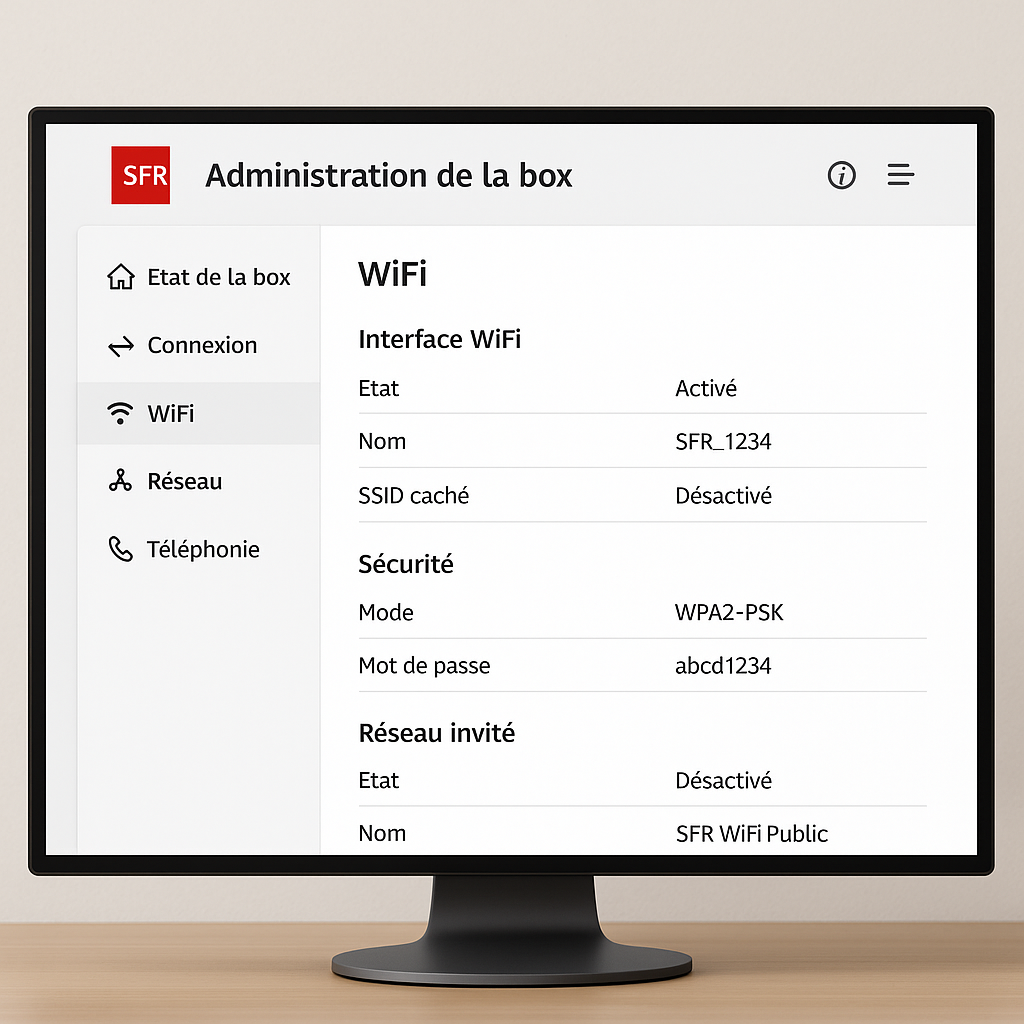
Make sure your computer or mobile device is properly connected to the box, either via Wi-Fi or Ethernet cable. A lit indicator on your box shows that the corresponding Ethernet port is active. If you are browsing via Wi-Fi, verify that you are connected to the default SSID or the one you have already configured.
Gather your credentials
Login information is usually found on the back or underside of your box: a username (often “admin”) and a default password. If you have changed them before, prepare them. Remember to note these codes in a secure place to avoid forgetting them.
Steps to access the interface
Follow this short tutorial to open your box’s administration console.
Open a web browser
You can choose Chrome, Firefox, Edge, or Safari. The idea is to use an up-to-date browser to ensure compatibility with your box’s interface.
Enter the IP address
In the address bar, type ip 192.168.1.1 then validate. A login page appears almost instantly, without needing an Internet connection: everything happens locally.
Log in with your credentials
Enter your username and password. In case of error, check the case or reset the fields by reloading the page. Some SFR/RED models also accept the default combination “sfradmin / sfradmin”.
Configure your network settings
Once connected, your panel is presented in several tabs.
Here are the main actions.
Change the SSID and Wi-Fi password
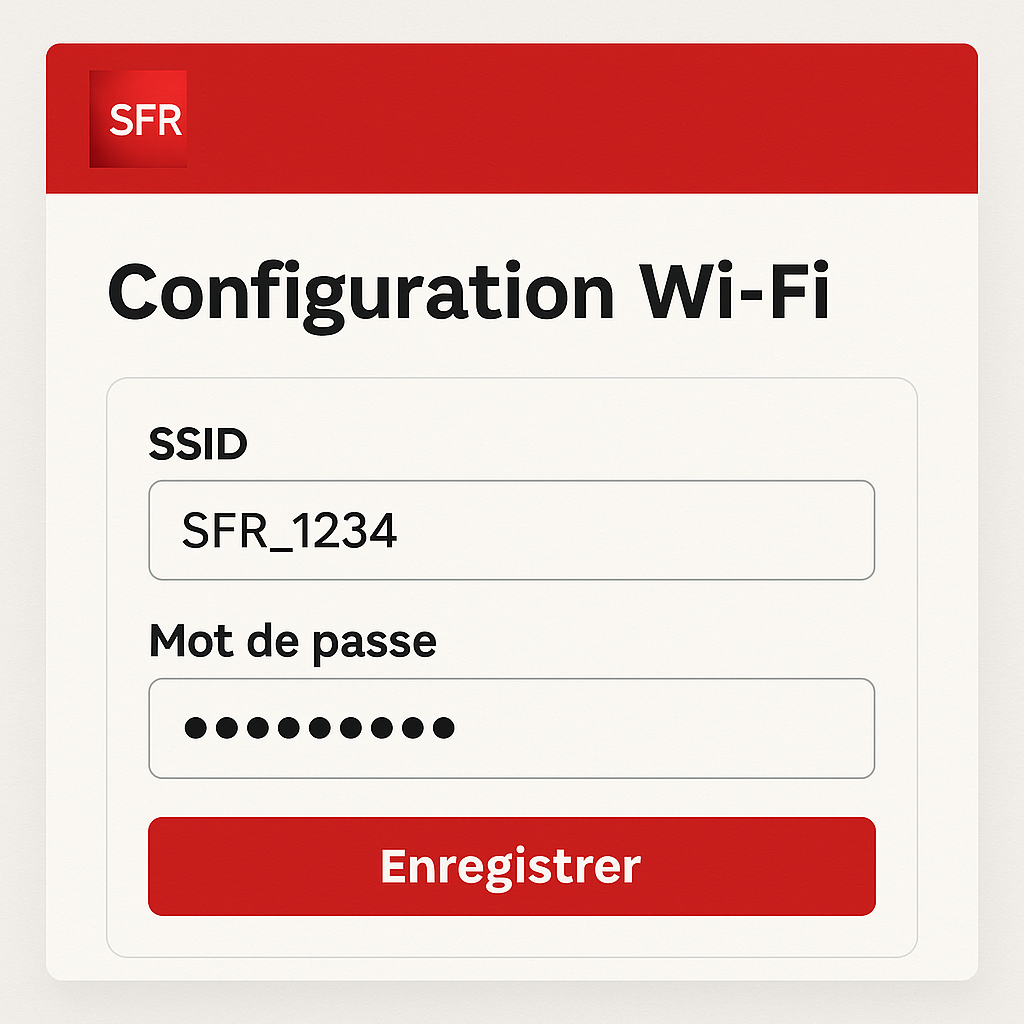
In the «Wi-Fi» section, change the network name (SSID) to something identifiable and set a secure password (WPA2 or WPA3). A long password mixing numbers, letters, and special characters strengthens your protection against intrusions.
Manage DHCP addresses
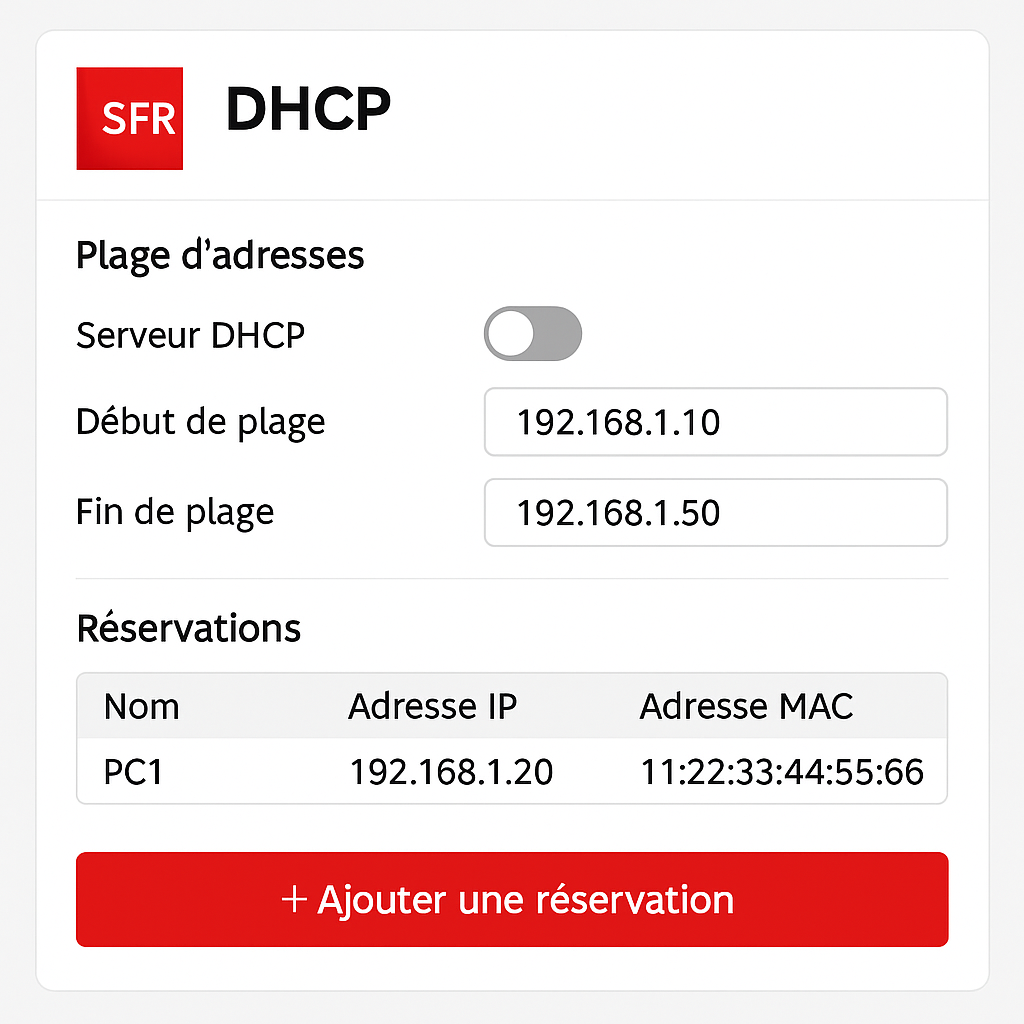
The DHCP server automatically assigns IP addresses to your devices. You can:
- Define a DHCP range adapted to your number of devices.
- Reserve fixed addresses (static IPs) for certain devices (server, printer).
Configure MAC filtering
For an additional level of security, enable MAC filtering. You add the MAC addresses of your devices to the whitelist; only they will be able to connect via Wi-Fi.
Tips and recommendations
For a high-performance and reliable network, adopt some good practices.
- Change your administrator password regularly.
- Enable WPA3 if your box and devices support it.
- Select a lightly congested Wi-Fi channel (1, 6, or 11 on 2.4 GHz).
- Monitor connection logs to detect any intrusion attempts.
| Context | Recommendation |
|---|---|
| Wi-Fi sharing with neighbors | Choose a different channel and limit transmission power |
| Connecting multiple devices | Expand the DHCP range and enable QoS to prioritize traffic |
| Speed issues | Test with a wired connection to isolate Wi-Fi problems |
FAQ
How do I reset my SFR/RED box if I lost my password?
Press and hold the reset button located at the back of the box for 10 seconds. The settings will return to factory defaults (original credentials under the device).
What to do if 192.168.1.1 does not respond?
Check your device’s local IP address via the command prompt (Windows: `ipconfig`). It must belong to the 192.168.1.x range. Restart the box and your computer.
Can I set up a guest network?
Yes, in the «Guest Wi-Fi» tab, enable this option to isolate your visitors from the main network.
How do I update my box’s firmware?
In the «Maintenance» or «Update» section, click on «Check for new version». Follow the instructions if an update is available.
Is MAC filtering sufficient to secure my network?
It’s a plus, but does not replace a strong WPA2/WPA3 password and regular updates.
Can I forward a port for a local server?
Yes, in «NAT/PAT» or «Port forwarding», create a rule specifying the internal IP and external port.









