The other morning, I was sorting my invoices on a large Excel spreadsheet while sipping a hot coffee. Between sips, I realized I needed to know how many invoices exceeded a certain amount and, even better, how many were from a specific supplier. That’s when the COUNTIF and COUNTIFS functions came to my rescue: small yet powerful tools to count precisely and save a ton of time.
Understanding the COUNTIF Function: Simple Counting
The COUNTIF function is used to count the number of cells that meet a single criterion. For example, you can find out how many orders exceed €500 or how many rows contain the status “Delivered.” Its basic syntax is:
=COUNTIF(range, criteria)
– range: the range of cells to analyze (e.g., A2:A50).
– criteria: the condition each cell must meet (e.g., “>500”, “Delivered”).
Practical Example
Suppose your invoice amounts are in column C, from C2 to C100. To find out how many exceed €1,000, you write:
=COUNTIF(C2:C100, “>1000”)
In the blink of an eye, Excel returns the exact number. No need to sort or filter manually; everything is done in one formula.
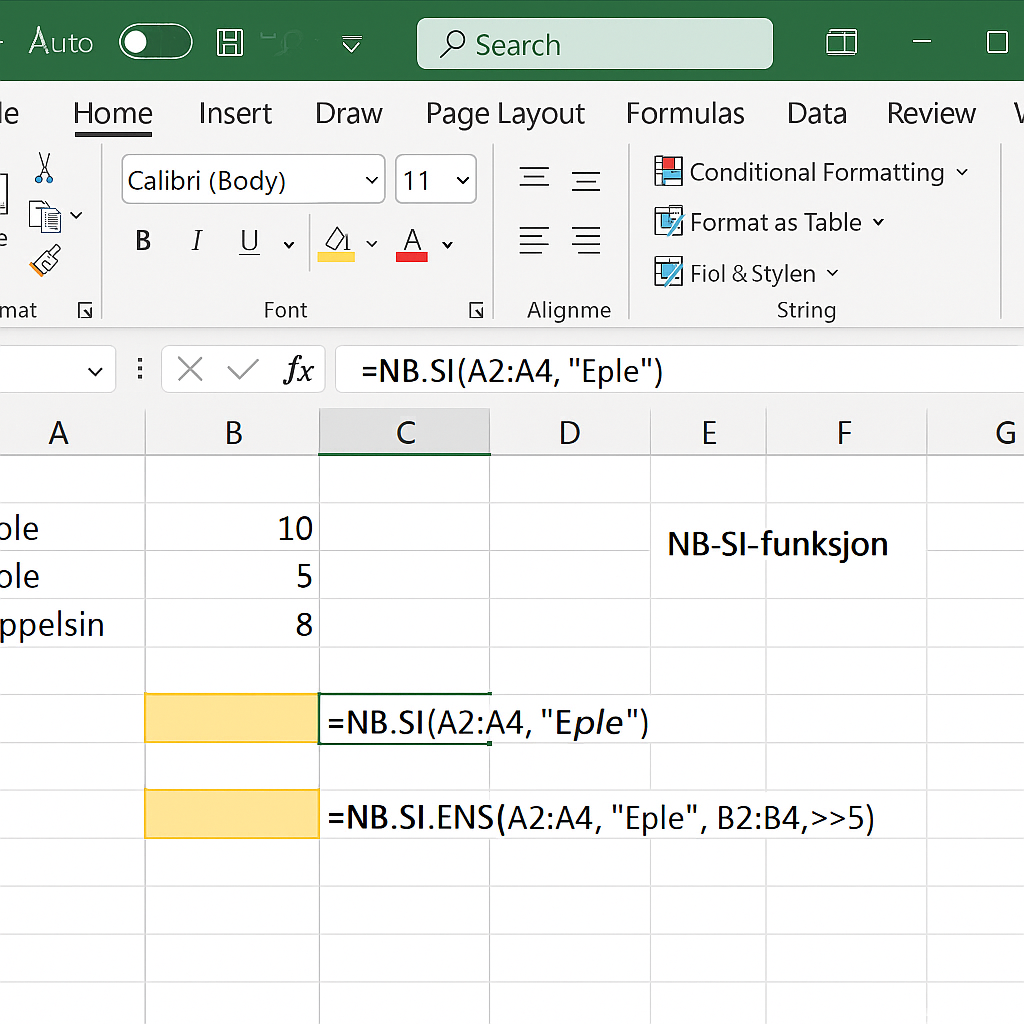
COUNTIFS: Multiple Criteria for Ultra-Precise Results
If you come from the world of the IF function or regularly use VLOOKUP, you quickly dream of a more advanced count: counting only invoices over €1,000 issued by the supplier “Alpha.” That’s exactly the role of COUNTIFS.
Its syntax:
=COUNTIFS(criteria_range1, criteria1, criteria_range2, criteria2, …)
- criteria_range1 and criteria1 define the first condition.
- Each additional range/criteria pair further refines the count.
Double-Entry Example
Imagine:
| Column | Content |
|---|---|
| C2:C100 | Invoice amount |
| D2:D100 | Supplier name |
To count rows where the amount is greater than €1,000 and the supplier is “Alpha,” you type:
=COUNTIFS(C2:C100, “>1000”, D2:D100, “Alpha”)
The result is instant: surgical precision, effortless.
When and Why to Use These Functions?
In practice, here are some common use cases:
- Sales tracking: number of sales by product category.
- Inventory management: out-of-stock items across multiple warehouses.
- Performance analysis: tests passed or failed per session.
- Financial reporting: invoices paid or overdue, sorted by client.
These formulas save you from multiplying manual filters and writing complex nested formulas. You gain clarity and maintainability: if one criterion changes, you adjust only one argument.
Best Practices and Tips
To get the most out of COUNTIF and COUNTIFS, keep these recommendations in mind:
- Structure your data: always place your headers and fields in an Excel table (Insert > Table). This allows ranges to update automatically.
- Name your ranges (formula > Name Manager) for better readability: Amounts instead of C2:C100, Suppliers instead of D2:D100.
- Use wildcards like “*” or “?” in the criteria: COUNTIF(range; “A*”) will count everything that starts with A.
- Avoid format errors: a criterion “>1000” applies the comparison on numeric values, whereas “>1000 €” might be interpreted as text depending on your regional settings.
- Test progressively: start with a single range/criteria pair, then add a second one; this makes debugging easier.
Comparison Table COUNTIF vs COUNTIFS
| Function | Use Case | Limitation |
|---|---|---|
| COUNTIF | Counting with a single criterion | No multi-criteria support |
| COUNTIFS | Counting with multiple criteria | Slightly longer syntax |
Common Errors and How to Fix Them
- #VALUE! : range and criteria of different lengths. Check your input carefully.
- #NAME? : wildcards misplaced or mixed French/English (COUNTIF vs NB.SI). Be attentive to your Excel language.
- Unexpected result: remember to check formats (number vs text vs date) and clean your cells with TRIM or CLEAN.
FAQ
What is the difference between COUNTIF and COUNTIFS?
COUNTIF handles a single criterion while COUNTIFS can manage several at once, making it more versatile for complex analyses.
Can COUNTIF be nested inside an IF formula?
Yes, you can write a formula like =IF(COUNTIF(range;”>0″); “OK”; “Not OK”) to get a textual or numeric return based on the count.
How to count specific dates with COUNTIF?
Simply use the DATE function as a criterion, for example =COUNTIF(B2:B100; DATE(2023;1;1)) to count cells containing exactly January 1, 2023.
Does COUNTIFS work across multiple tables?
Yes, but each range must be the same size and in the same workbook. If your data is on two tabs, name your ranges then use them.
In closing
At a time when speed and accuracy have become essential, mastering COUNTIF and COUNTIFS gives you a real advantage for your reports and dashboards. You will juggle criteria and counts like a pro, without getting lost in dozens of filters. So, try these formulas on your next project – your spreadsheets will thank you! 😊









