🎯 TL;DR – Quick Answer
The ideal RAM frequency depends on your setup:
- For DDR4 (2022-2024 setups): 3,600 MHz is the optimal sweet spot. It’s the perfect cost/performance balance.
- For DDR5 (2024-2025 setups): 5,200 MHz offers the best stability and compatibility. Avoid extreme frequencies (>6,000 MHz) without overclocking expertise.
- Minimum requirement: ALWAYS check your processor and motherboard before buying. Incompatible RAM simply won’t boot.
- Beyond the minimum: Yes, a higher frequency = better performance, but gains diminish quickly. From 3,600 MHz (DDR4) or 5,200 MHz (DDR5), in-game improvements are almost imperceptible.
If you’re building a gaming PC or upgrading your current setup, you’re probably asking THE question: what RAM frequency should you choose for the best performance?
Good news: this article will answer ALL your questions. We’ll break down the topic, show you exactly how RAM frequency works, what real impact it has on games, and especially how to make the right choice based on YOUR specific needs.
🔧 The Basics: Understanding RAM Frequency
What exactly is RAM frequency?
RAM frequency represents its data transfer speed. Concretely, it’s the number of times per second your RAM can read/write data. The higher this number, the faster the exchanges between your CPU, GPU, and hard drive.
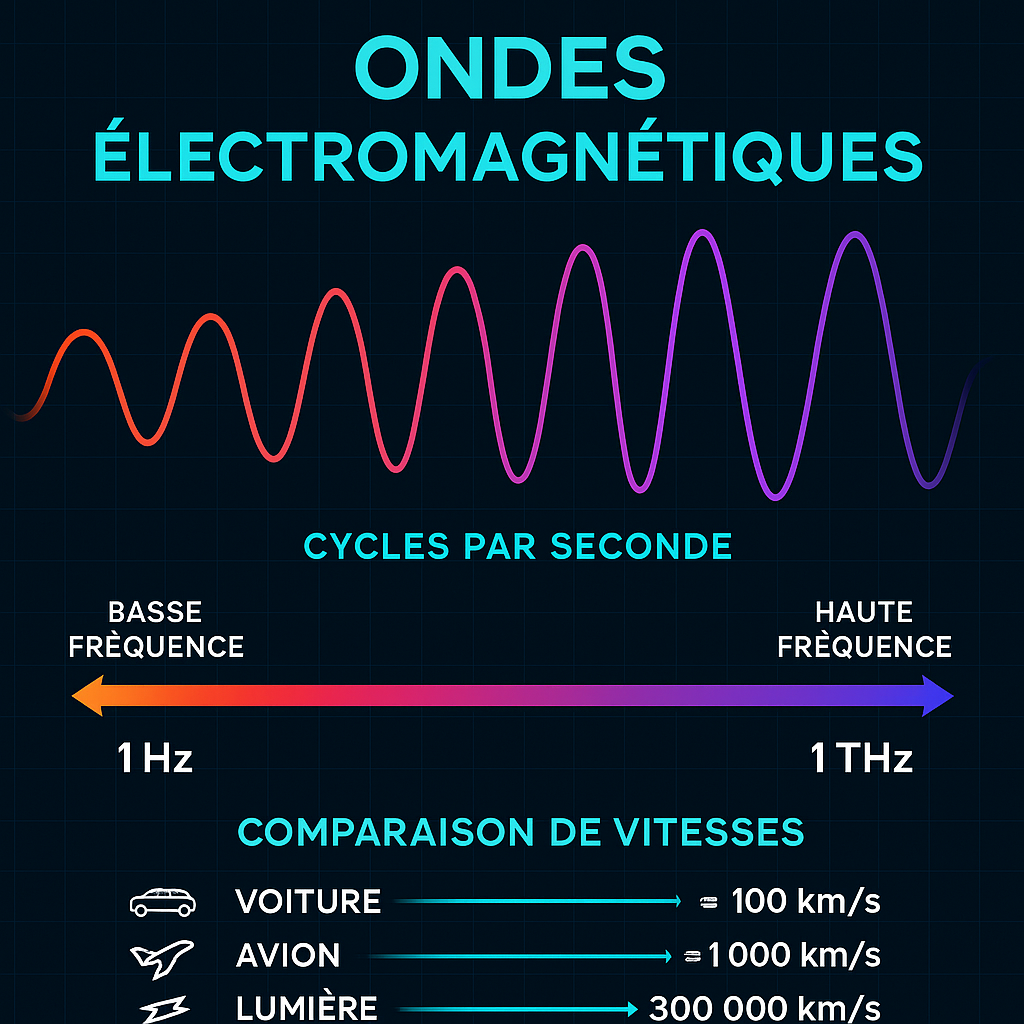
MHz, GHz, Hz… what’s the difference?
- Hz (Hertz) = 1 cycle per second
- MHz (Megahertz) = 1 million cycles per second (used for RAM)
- GHz (Gigahertz) = 1 billion cycles per second (used for processors)
When we say “RAM 3,600 MHz“, it means the RAM performs 3.6 billion cycles per second. That’s HUGE, and that’s why even the most basic frequencies are ridiculously fast for typical use.
CAS Latency (CL) vs Frequency: which is more important?
Great question! Many people confuse frequency and latency. Here’s the truth:
| Aspect | Frequency (MHz) | CAS Latency (CL) |
|---|---|---|
| Definition | Transfer speed | Delay to access data |
| Gaming impact | Medium (5-15% FPS) | Low (2-5% FPS) |
| Priority | YES – #1 priority | Secondary |
| Example | 3,600 MHz | CL16 (lower is better) |
In summary: For 90% of cases, prioritize high frequency over low latency. A 3,600 MHz CL18 RAM will be better than a 3,200 MHz CL14 RAM for gaming.
⭐ Our Verdict: Recommended Frequencies by Type
| RAM Type | Recommended Frequency | Maximum Frequency (optional) | Average Price (16 GB) | Best For |
|---|---|---|---|---|
| DDR4 | 3,600 MHz ✅ | 4,000-4,800 MHz | €120-180 | Gaming PC 2022-2024 |
| DDR5 | 5,200 MHz ✅ | 5,600-6,000 MHz | €200-280 | Gaming PC 2024-2025+ |
| DDR3 (old) | 1,600 MHz | N/A | Obsolete | Very old PC |
✅ Optimal Choice 2025:
- Do you have an AMD Ryzen 5000/7000 processor or Intel 11th-14th generation? → 3,600 MHz (DDR4) or 5,200 MHz (DDR5) depending on your motherboard
- Building a new PC in 2025? → Prefer DDR5 5,200 MHz (long-term future)
- Upgrading an old PC? → Stay with DDR4 3,600 MHz if your motherboard is not DDR5 compatible
📊 Detailed Comparison Table: RAM Frequencies
DDR4: All Main Frequencies
| Frequency | Relative Performance | Use Case | Estimated Budget | Our Opinion |
|---|---|---|---|---|
| 2,666 MHz | Baseline 100% | Office work, old PC | €80-100 | ⚠️ Too slow for gaming |
| 3,000 MHz | 110% | Slight performance boost | €100-120 | ⚠️ Acceptable basic |
| 3,200 MHz | 120% | Entry-level gaming | €110-140 | ✅ Good value for money (old standard) |
| 3,600 MHz | 135% | Mid-range and high-end gaming | €130-170 | ✅✅ OPTIMAL 2024-2025 |
| 4,000 MHz | 145% | High-end gaming, creative work | €150-200 | ✅ Excellent if small extra budget |
| 4,400+ MHz | 155%+ | Overclocking, expert | €180-250+ | ❌ Overkill for 99% of users |
DDR5: Current Frequencies
| Frequency | Relative Performance | Use Case | Estimated Budget | Our Opinion |
|---|---|---|---|---|
| 4,800 MHz | Baseline 100% | Minimum DDR5 | €180-220 | ✅ Acceptable basic |
| 5,200 MHz | 108% | Optimal gaming | €200-260 | ✅✅ BEST CHOICE 2025 |
| 5,600 MHz | 115% | High-end gaming | €240-300 | ✅ Premium if unlimited budget |
| 6,000 MHz | 125% | Experts, overclocking | €280-350+ | ⚠️ Questionable stability |
⚠️ Important: Performance percentages are ESTIMATES. The real impact depends on your processor, GPU, and game. Actual differences between 3,600 MHz and 4,000 MHz in games are often imperceptible (1-3 FPS).
🖥️ Ideal Frequencies by Processor
AMD Ryzen (DDR4 – 5000/5800X/5900X/5950X Generations)
| Processor | Minimum Frequency | Recommended Frequency | Maximum Stable Frequency |
|---|---|---|---|
| Ryzen 5 5600X | 2,666 MHz | 3,600 MHz | 4,000 MHz |
| Ryzen 7 5800X | 2,666 MHz | 3,600 MHz | 4,000+ MHz |
| Ryzen 9 5900X | 2,666 MHz | 3,600 MHz | 4,000+ MHz |
AMD Ryzen (DDR5 – 7000 Generations)
| Processor | Minimum Frequency | Recommended Frequency | Maximum Stable Frequency |
|---|---|---|---|
| Ryzen 5 7600X | 4,800 MHz | 5,200 MHz | 5,600+ MHz |
| Ryzen 7 7700X | 4,800 MHz | 5,200 MHz | 5,600+ MHz |
| Ryzen 9 7950X | 4,800 MHz | 5,200 MHz | 6,000+ MHz |
Intel (DDR4 – 10th/11th/12th/13th Generation)
| Processor | Minimum Frequency | Recommended Frequency | Maximum Stable Frequency |
|---|---|---|---|
| Core i5-12400K | 2,667 MHz | 3,200 MHz | 3,600 MHz |
| Core i7-13700K | 2,667 MHz | 3,600 MHz | 4,000+ MHz |
| Core i9-13900K | 2,667 MHz | 3,600-4,000 MHz | 4,400+ MHz |
Intel (DDR5 – 12th/13th/14th Generation)
| Processor | Minimum Frequency | Recommended Frequency | Maximum Stable Frequency |
|---|---|---|---|
| Core i5-13600K | 4,800 MHz | 5,200 MHz | 5,600 MHz |
| Core i7-13700K | 4,800 MHz | 5,200-5,600 MHz | 6,000+ MHz |
| Core i9-14900K | 4,800 MHz | 5,600 MHz | 6,400+ MHz |
💡 Tip: If you don’t see your exact processor, find the manual for your motherboard. It always lists the supported RAM frequencies. This is the definitive source!
🎮 Real Impact on Gaming Performance
RAM Frequency vs GPU vs CPU: Where to Invest First?
Many gamers wonder: is RAM really what limits my FPS? Good question!
Order of Importance for Gaming
| Priority | Component | Impact on FPS | Recommended Budget |
|---|---|---|---|
| 1️⃣ CRITICAL | GPU (Graphics Card) | 70-80% of performance | 40-50% of total budget |
| 2️⃣ IMPORTANT | CPU (Processor) | 15-20% of performance | 25-30% of total budget |
| 3️⃣ SECONDARY | RAM | 5-10% of performance | 10-15% of total budget |
| 4️⃣ DETAIL | SSD/Storage | 0% FPS, +loading time | 10% of total budget |
⚠️ Common mistake: A gamer with a RTX 3060 who buys 4,800 MHz RAM instead of upgrading their GPU. That’s the opposite of common sense! First the GPU, then the CPU, THEN the RAM.
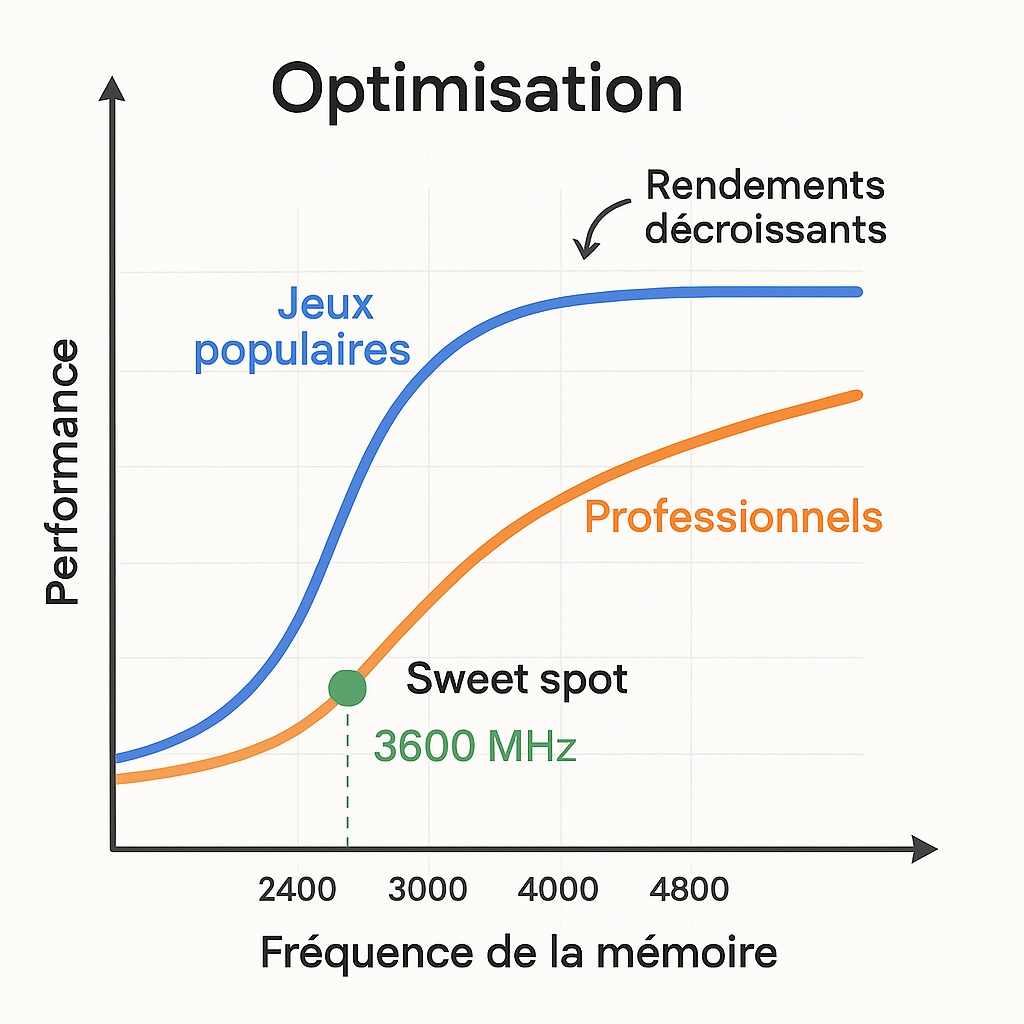
At what RAM frequency do your FPS plateau?
Here is an estimated graph showing where gains stop:
| DDR4 Frequency | Relative Performance | Additional Gain |
|---|---|---|
| 2,666 MHz | 100% (baseline) | — |
| 3,000 MHz | 103% | +3% |
| 3,200 MHz | 105% | +2% |
| 3,600 MHz | 110% | +5% ← Sweet spot |
| 4,000 MHz | 111% | +1% (diminishing returns) |
| 4,400 MHz | 111.5% | +0.5% (almost nothing) |
Key point: After 3,600 MHz (DDR4) or 5,200 MHz (DDR5), each additional frequency increase offers exponentially diminishing gains. This is the point where the ROI (return on investment) becomes negative.
❌ Mistakes to Absolutely Avoid
Mistake #1: Buying the fastest RAM on the market
The trap: “Faster = better,” you think. WRONG.
The reality: A 6,000 MHz RAM may be incompatible with your processor and refuse to start. Or it will be 50% more expensive for an imperceptible gain.
Solution: ALWAYS check the official specifications of your processor and motherboard.
Mistake #2: Ignoring DDR3/DDR4/DDR5 compatibility
The trap: Buying DDR4 for a DDR5 motherboard (or vice versa).
The consequence: The RAM physically does not fit into the slot. Guaranteed loss of money.
Solution: Check the MANUAL of your motherboard. It’s written in black and white.
Mistake #3: Buying RAM before the processor/motherboard
The trap: Choosing RAM first without knowing the final platform.
Solution: ALWAYS choose in this order: (1) CPU → (2) Motherboard → (3) Compatible RAM.
Mistake #4: Thinking more GB = faster
The trap: Confusing quantity (32 GB) and speed (frequency in MHz).
The truth: 16 GB at 3,600 MHz > 32 GB at 2,666 MHz for gaming.
Solution: Prioritize frequency first, then add capacity if necessary.
Mistake #5: Mixing different RAM frequencies
The trap: “I’m going to install 2 sticks at 3,200 MHz + 2 sticks at 3,600 MHz.”
The consequence: Your PC will use the lowest frequency (3,200 MHz). The 3,600 MHz sticks will be locked.
Solution: All sticks must have the SAME frequency.
Mistake #6: Completely ignoring CAS latency (CL)
Nuance: We said latency is secondary. But not nonexistent!
Good compromise: Look for RAM with high frequency AND reasonable latency. Example: 3,600 MHz CL16 or 5,200 MHz CL30.
To avoid: 3,600 MHz CL22 (latency too high) or 2,666 MHz CL14 (frequency too low).
Mistake #7: Forgetting the memory controllers integrated into the CPU
Technical reality: Since Ryzen, the memory controller is integrated into the CPU, not the motherboard. This means:
- Each CPU generation has different frequency limits
- A Ryzen 5000 will not support the same max frequency as a Ryzen 7000
- Forcing the frequency too high = instability or crash
Solution: Respect the official limits of the processor, not just the motherboard.
📋 Practical Guide: How to Choose Your RAM
Step 1: Identify your processor and motherboard
- Windows: Open “System Information” (Win+Pause) or use CPU-Z
- Find out: Exact processor (e.g., “Core i7-13700K”) and motherboard (e.g., “ASUS ROG STRIX Z790”)
- Download the official manual of your motherboard (PDF on the manufacturer’s website)
Step 2: Check RAM compatibility
In the manual, look for the “Memory Support” section. You will find:
- Type: DDR3 / DDR4 / DDR5?
- Number of slots: 2, 4, 8 slots?
- Maximum capacity: Up to 64 GB, 128 GB, etc.?
- Supported frequencies: 2,666 MHz, 3,200 MHz, 3,600 MHz, 4,800 MHz, etc.?
Step 3: Choose the optimal frequency
Base yourself on our table above:
- DDR4: Prefer 3,600 MHz
- DDR5: Prefer 5,200 MHz
Step 4: Choose the capacity (GB)
| Usage | Minimum capacity | Ideal capacity |
|---|---|---|
| Office work, web | 8 GB | 16 GB |
| Gaming (1080p-1440p) | 16 GB | 32 GB (future-proof) |
| Gaming (4K) | 16 GB | 32 GB+ |
| Content creation (editing, 3D) | 32 GB | 64 GB+ |
| Streaming + simultaneous gaming | 32 GB | 64 GB+ |
Step 5: Check CAS latency
Once you have found compatible RAM at the right frequency, look at the CAS latency (CL):
- DDR4 3,600 MHz: Look for CL16 or CL18 (CL14 would be even better)
- DDR5 5,200 MHz: Look for CL30 or CL32 (it’s normal for it to be higher)
Step 6: Buy and install
Some installation tips:
- Turn off the PC and unplug it
- Locate the RAM slots (usually next to the CPU)
- Align the stick with the slot (it only fits one way)
- Press firmly until the end clips snap into place
- Restart and check in the BIOS that the RAM is recognized
⚠️ If the PC does not start: The RAM is probably not the right frequency. Wait 30 seconds and reinsert it. The BIOS should reset automatically.
❓ Complete FAQ (20+ Questions)
Q1: What is the difference between 3,200 MHz and 3,600 MHz in gaming?
A: About 5-10% FPS gain depending on the game. On a game running at 100 FPS, you would go up to 105-110 FPS. Appreciable but not revolutionary.
Q2: Can I use DDR4 on a DDR5 motherboard?
A: NO. Physically, the connector is different. DDR4 RAM does not fit into a DDR5 slot. Check your motherboard BEFORE buying.
Q3: What is the maximum RAM a PC can support?
A: It depends on the platform:
- AMD Ryzen 7000 (DDR5): up to 192 GB
- Intel 13th generation (DDR5): up to 192 GB
- AMD Ryzen 5000 (DDR4): up to 128 GB
But for gaming, 32-64 GB is more than enough (you will never use 128 GB in games).
Q4: Do all RAM sticks need to be identical?
A: Ideally YES. For optimal performance and guaranteed stability, all sticks should:
- Have the same frequency (MHz)
- Have the same capacity (GB) – optional but recommended
- Be from the same brand – optional
If you mix, everything will run at the lowest frequency and you risk instability.
Q5: Does the RGB color of RAM affect performance?
A: NO. RGB lighting is purely cosmetic. RGB and non-RGB RAM with the same specifications will offer exactly the same performance. The only difference: price (+€10-30 for RGB).
Q6: How to check my current RAM frequency?
A: Use these free tools:
- CPU-Z (best): Go to the “Memory” tab and look at “Frequency”
- Task Manager (Windows): Open it, go to “Performance” → “Memory”
- BIOS: Restart and enter BIOS (Delete or F2 key) – look for “Memory Frequency”
Q7: Can RAM be overclocked to go faster?
A: YES, but it’s risky. RAM overclocking can improve performance by 5-15% in benchmarks, but:
- It’s complex (requires BIOS knowledge)
- Risk of instability, corrupted errors, or even hardware damage
- Often voids warranty
Verdict: For beginners, DO NOT try overclocking. Stock (factory frequency) is very well optimized.
Q8: Which RAM brand to choose? Corsair, Kingston, G.Skill, Crucial?
A: All major brands are reliable. Here is the 2025 ranking:
- 🥇 G.Skill: Best value for money, excellent OC support
- 🥈 Corsair: Premium, RGB design, very reliable
- 🥉 Kingston: Cheap, solid
- ⭐ Crucial: Economical, not fancy but good
Advice: Prioritize frequency over brand. A G.Skill 3,600 MHz is better than a Corsair 3,200 MHz.
Q9: Does RAM generate a lot of heat?
A: No, it’s negligible. RAM rarely goes above 50°C even under intensive gaming. No additional cooling is necessary (small heatsinks are cosmetic).
Q10: Is it important to have RAM synchronized with my GPU?
A: Not at all. GPU and CPU/RAM frequencies are completely independent. You can have a slow GPU with fast RAM, and vice versa. No problem.
Q11: How much RAM for streaming + gaming simultaneously?
A: At least 32 GB at an acceptable frequency (3,600 MHz DDR4 / 5,200 MHz DDR5). 16 GB is enough for gaming alone, but streaming consumes a lot (OBS + game = 20-25 GB used).
Q12: Does my RAM degrade over time?
A: Theoretically yes, but very slowly. RAM easily lasts 10+ years under normal use. Real risks are:
- Extreme overheating (rare in desktop PCs)
- Electrical overload (rare with a decent power supply)
- Physical damage (drops, humidity)
Conclusion: Your RAM will probably outlive you!
Q13: Should I enable XMP/EXPO in BIOS?
A: YES, absolutely. By default, your RAM often runs at 2,666 MHz (JEDEC standard) even if it is capable of 3,600 MHz.
How: Enter BIOS (Del or F2 at startup) → Look for “XMP” (Intel) or “EXPO” (AMD) → Enable XMP/EXPO profile #1 or #2.
Result: Your RAM will automatically switch to its rated frequency. Simple and quick!
Q14: What is the difference between JEDEC and XMP?
A:
- JEDEC: Conservative basic standard (e.g., 2,666 MHz). Always stable.
- XMP (Intel): Manufacturer-optimized RAM profile (e.g., 3,600 MHz CL16). Faster but requires compatible BIOS.
- EXPO (AMD): AMD equivalent of XMP. Same concept.
Advice: If your motherboard/CPU supports XMP/EXPO, always use it. It’s safe and free performance.
Q15: Is 2 x 8 GB better or 1 x 16 GB?
A: 2 x 8 GB is slightly better because:
- Dual-Channel mode enabled → +5-10% performance
- Easier future upgrade (you have a free slot)
But the actual difference is minor. If you find 1 x 16 GB at the best price, that’s okay.
Q16: Does RAM influence game loading times?
A: Very little (less than 1-2 seconds). The SSD is MUCH more important. A 3,600 MHz RAM with a traditional HDD will be slower than 2,666 MHz RAM with an NVMe SSD.
Q17: Should you buy RAM with a heat spreader?
A: No, it’s marketing. RAM heat spreaders are generally unnecessary for:
- Typical gaming (temperature remains low)
- Moderate overclocking
Justified for: Extreme overclocking in competition.
Budget: Prefer RAM without heat spreader if it is cheaper.
Q18: Can you add RAM to a gaming laptop?
A: Sometimes. It depends on the model:
- Older/gaming laptops: Often upgradable (there is an accessible panel)
- Recent MacBook Pro / thin Ultrabooks: Generally non-upgradable (soldered RAM)
How to check: Google “[Your laptop model] RAM upgrade” and watch YouTube tutorials.
Q19: What type of RAM for a server / NAS?
A: Look for ECC RAM (Error-Correcting Code):
- Detects and corrects errors (important 24/7)
- Costs 20-30% more
- Mandatory for professional servers
For a personal NAS: regular RAM is sufficient, but ECC is safer for your data.
Q20: How much does it cost to upgrade RAM in 2025?
A: Here are estimated prices (16 GB, November 2025):
- DDR4 3,200 MHz: €90-120
- DDR4 3,600 MHz: €130-170 ← Best value for money
- DDR4 4,000 MHz: €150-200
- DDR5 5,200 MHz: €200-260 ← Premium
- DDR5 6,000 MHz: €280-350 ← High-end
Average budget for a nice gaming setup: 32 GB DDR4 3,600 MHz = €260-340.
🎯 Conclusion & Final Recommendations
✅ Summary of the best choices for 2025:
- Tight budget (€100-150): DDR4 3,200 MHz, 16 GB
- Classic gaming (€150-200): DDR4 3,600 MHz, 16 GB (BEST CHOICE)
- High-end gaming (€200-250): DDR5 5,200 MHz, 16 GB
- Future-proof (€250-300+): DDR5 5,600 MHz, 32 GB
✅ Checklist before buying
Before spending your money, check:
- ☐ Exact processor identified
- ☐ Exact motherboard identified
- ☐ Motherboard manual consulted (RAM specifications)
- ☐ Compatible DDR type (3/4/5) confirmed
- ☐ Maximum supported frequency noted
- ☐ Budget defined
- ☐ Number of available slots checked
- ☐ Maximum supported capacity noted (e.g., 64 GB, 128 GB)
- ☐ Final choice validated (frequency + capacity + brand)
- ☐ Purchase made and installation planned
🚀 Steps after installation
- Restart the PC
- Enter BIOS (Delete key, F2, F12, depends on PC)
- Enable XMP (Intel) or EXPO (AMD) – Profile 1 or 2
- Save and exit BIOS
- Check in CPU-Z that the frequency has been applied (Memory tab)
- Run a benchmark (3DMark, Cinebench) or a game to validate stability
- Enjoy your new performance! 🎮
📞 Need further help?
If you still have doubts:
- 📋 Consult your motherboard manual (definitive source)
- 🔧 Ask on Reddit r/buildapc or r/PcMasterRace (very active community)
- 💬 Contact your PC manufacturer’s support (if pre-built)
- 🛠️ Visit a specialized store (they can help you for free)
🏆 You are now ready to choose the RIGHT RAM frequency. Remember: high frequency + compatible + good price = success! 🎮
💡 Transparency: This article may contain affiliate links. Commission at no extra cost to you. 100% independent opinion. Prices checked in November 2025.
Author: Jöel | Updated: 11/13/2025









